
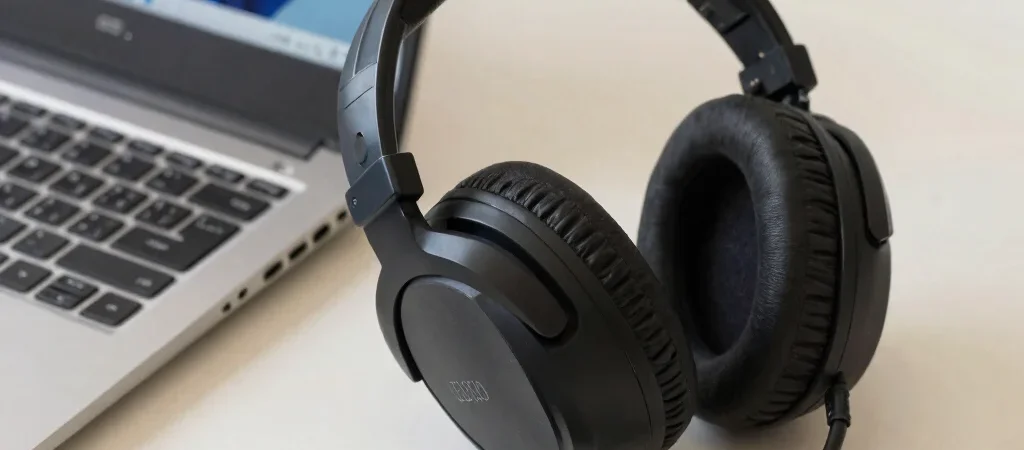
A headset can deliver game audio perfectly while its microphone stays silent. That usually means the output and input are being treated as separate devices, or the app is listening to the wrong one. Work through Windows first, then check the game or chat app.
Choose the right input
Open Windows Sound settings and find the input device list. Select the headset microphone rather than a laptop’s built-in mic, then speak and watch the input level to see whether Windows receives a signal. If the headset isn’t listed, unplug and reconnect it, or check Bluetooth settings to confirm it is connected as an audio device.
Check access and app settings
In Windows privacy settings, make sure microphone access is allowed for the device and the desktop apps you use. Next, open the game or voice-chat app’s audio settings and choose the same headset microphone as its input. Some apps keep using the device selected when they first launched, so close and reopen the app after changing Windows settings.
Inspect the physical connection
Check the headset’s mute switch and make sure a detachable boom mic is seated firmly. A headset with one combined 3.5 mm plug may need a compatible combo jack; a PC with separate headphone and microphone jacks may require a splitter. Test the mic in Windows after each change, so you know whether the fix came from the connection or the software.