
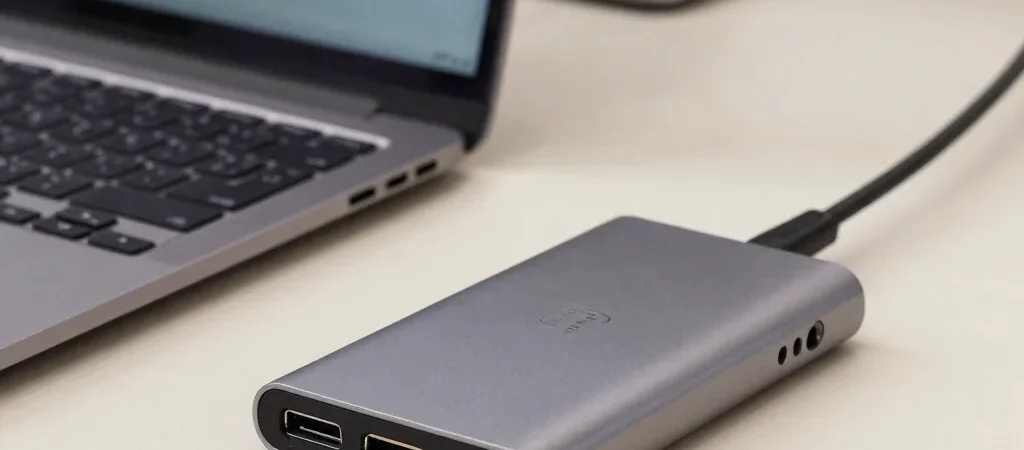
A USB-C hub looks simple: one cable goes into the laptop, and a row of ports appears on the desk. The catch is that the USB-C connector describes the shape of the plug, not every feature behind it. To avoid a hub that can’t drive your display or charge your laptop as expected, check both ends of the connection.
Start with the laptop
Find your laptop’s specifications and look for video output over USB-C, often described as DisplayPort Alt Mode or Thunderbolt support. A USB-C port that handles data and charging may not support an external display. If the specifications are unclear, check the laptop maker’s support page for the exact model rather than relying on the symbol beside the port alone.
Match the ports to your setup
Write down what you’ll connect: perhaps an HDMI display, a USB-A mouse, an external drive, and a charger. Then check whether the hub supports the display resolution and refresh rate you need, and whether its USB ports have enough bandwidth for the devices you plan to use. A hub can share its available bandwidth across connected devices, so moving large files while using other accessories may affect transfer speeds.
Read the power details
If you want the hub to charge your laptop, check its power-delivery input and output specifications, then compare them with your laptop’s charging needs. The wattage listed for pass-through charging may be higher than what reaches the computer because the hub uses some power itself. Leave room for your actual setup, and treat a hub’s port count as only one part of the decision.