
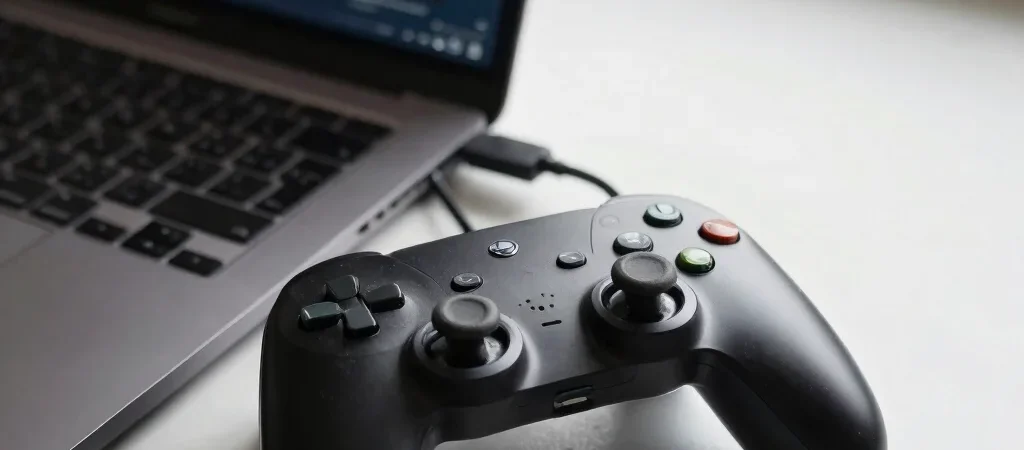
A gamepad can connect to your PC and still fail to work in a particular game. The cause is often a mismatch between how Windows sees the controller and how the game expects to receive input. Start with the connection, then check Steam’s controller settings one layer at a time.
Check the connection first
If you’re using Bluetooth, confirm the controller is paired with the PC rather than a nearby console or another device. For a quick test, connect it with a USB cable that supports data; some cables charge without carrying data. If the controller works over USB but not Bluetooth, remove its pairing from Windows and pair it again.
Look inside Steam
Open Steam’s Settings and select Controller to see whether Steam detects the gamepad. If it appears there, use the available controller test to check whether button presses register. For a game that still doesn’t respond, open that game’s Properties and check its Controller settings; try the recommended Steam Input option, then relaunch the game.
Separate game issues from controller issues
Test the controller in another game before changing several settings at once. If it works elsewhere, the problem is likely tied to that game’s input options or controller support, not the hardware connection. Change one setting, launch the game again, and keep the option that restores input without creating duplicate button responses.